Repairs
Console Overheating or Shutting Down? Safe Checks Before Repair
Use safe checks for a PlayStation, Xbox or Switch that overheats, gets noisy or shuts down, and learn when professional diagnosis is needed.
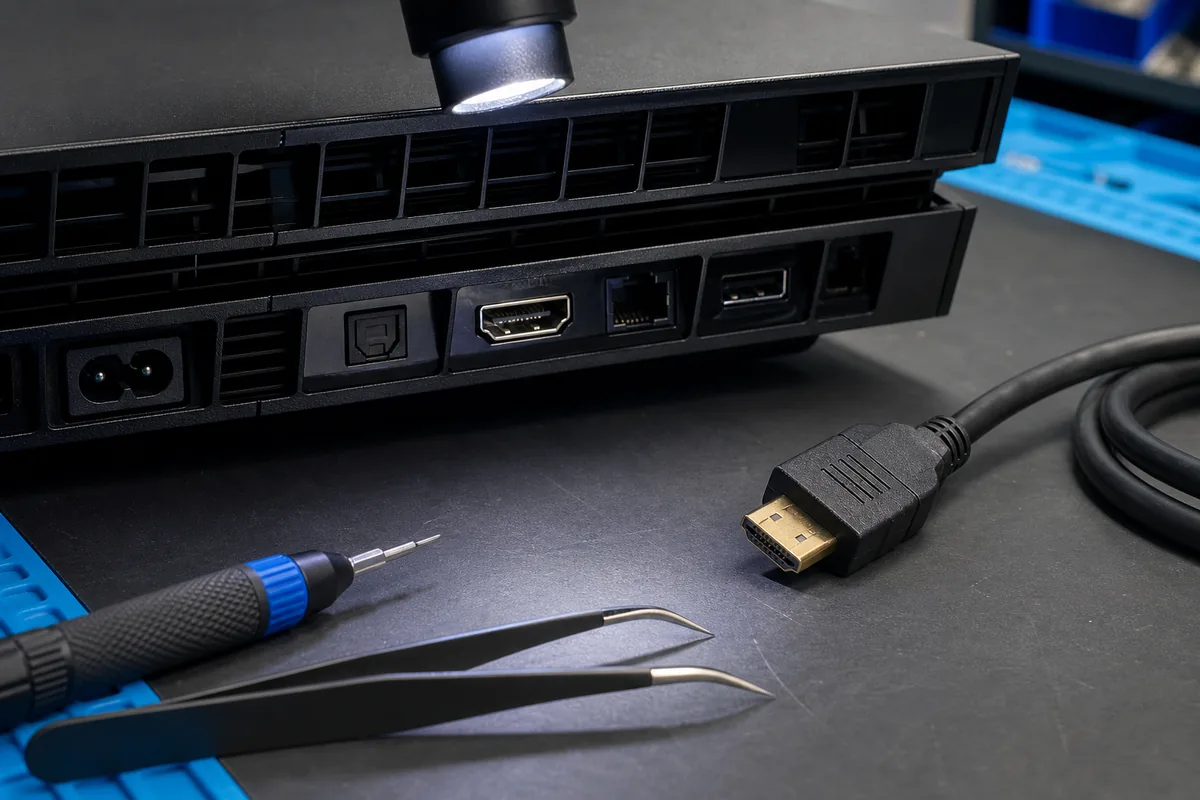
Quick answer: Turn the console off, unplug it and let it cool. Move it into open ventilation, remove external dust without pushing debris inside, check the power lead and note whether it shows a heat warning or simply loses power. Repeated shutdowns, burning smells, liquid exposure or abnormal fan behaviour need diagnosis rather than continued play.
A hot console and a console that abruptly loses power are not always the same fault. Dust and poor airflow are common possibilities, but power supplies, fans, thermal interfaces, storage and board faults can create similar symptoms. The safest first step is to record the pattern rather than repeatedly restarting it.
Cool It Down and Improve Ventilation
Turn the console off, unplug it and wait until it has cooled before handling or cleaning it. Move it out of a closed cabinet, away from direct heat and onto a firm surface. Leave clear space around the air intakes and exhaust. Soft furnishings and deep carpet can restrict airflow.
Remove loose dust from external vents using a gentle method recommended for the model. Do not drive compressed air deep into the unit, hold a fan at damaging speed or open power-supply areas unless you have the correct training and safety controls.
Write Down Exactly What Happens
- Does the console show an overheating warning before it turns off?
- Does the fan become loud, stay silent or change speed?
- Does shutdown happen only in demanding games, after a set time or immediately?
- Can it turn back on straight away, or only after unplugging and cooling?
- Did the issue begin after a move, fall, liquid spill, storage upgrade or previous repair?
This timeline helps distinguish a thermal warning from a sudden power loss or software crash. A black screen can also be an HDMI fault while the console remains running, so check the power light and sound before assuming it shut down.
Check the Simple External Causes
With the console off, inspect the power lead and socket for looseness, damage or heat marks. Connect directly to a known-good wall outlet for a controlled test if the manufacturer permits it. Remove unneeded USB accessories and make sure system software is current once the console is stable enough to update safely.
What Not to Do
- Do not keep playing through repeated heat warnings.
- Do not use a vacuum or cleaning method that the manufacturer warns against.
- Do not apply random thermal paste or liquid metal without model-specific skill.
- Do not open a power supply; dangerous stored voltage may remain after unplugging.
- Do not assume every shutdown is “just dust”.
When Diagnosis Is the Better Next Step
Arrange an assessment if the console keeps shutting down in open ventilation, the fan does not behave normally, there is a burning smell, the case is damaged, liquid was involved or the fault returns soon after external cleaning. A technician can test under load, inspect the cooling path and separate thermal, power and board-level causes before quoting parts.
Practical note: Back up or synchronise game saves where the platform and account allow it before repair. Storage replacement or some system repairs can affect locally stored data.
Sources & Further Reading
Model construction and approved maintenance steps differ. Follow the manufacturer’s safety guide for your exact console and seek professional help for internal electrical or board work.
Want A Hand With This?
Talk to our Noosaville team about your setup. No jargon, no pressure.